Home
Download
TV
PC
Guide
Get App
Home
Download
TV
PC
Guide
Get App
Home
Guide
Castle App Guide: How to Install, SetUp, and Watch Live Sports for Free
Guide Introduction
Let’s be honest: getting started with a third-party streaming app isn't always as straightforward as tapping "Install" on the Play Store. You might be wondering why the app isn't showing up in your usual search results, or perhaps you've installed it but aren't sure how to get the best picture quality for a live match. This confusion is common, and it’s exactly why we wrote this guide.
We created this page to be the single, definitive manual for both total beginners and regular users of Castle. We aren't just going to tell you to "download it." We are going to walk you through the entire process, from safely installing the file to finding your favourite cricket match and fixing common playback issues. Whether you are trying to set this up on your Android phone, your Smart TV, or even your laptop, we have broken it down into simple, plain English. No technical jargon, just clear steps to get you watching.
Download Castle APK
Understanding Castle and How It Works
Before you dive into the settings, it helps to understand what Castle actually is. In simple terms, Castle is a bridge that connects your device to hundreds of live TV channels and sports feeds from around the world. Unlike Netflix or Prime Video, which mostly offer a library of stored movies (on-demand), Castle specialises in live broadcasting.
When you open the app, it pulls real-time video feeds from various networks, Star Sports, news channels, movie networks, and streams them directly to your screen over the internet. Think of it as a virtual cable box that lives inside your phone. Because it is streaming live content, it relies entirely on your internet connection. The app organises these feeds into easy-to-navigate categories like "Live Cricket," "TV Channels," or "Movies."
The moment you click on a channel, the app connects to the server broadcasting that signal. There is no heavy downloading involved; the video plays instantly as data arrives. This means you can turn your phone into a portable TV, watching events as they happen, second by second.
Devices Supported by Castle
One of the best things about Castle is its flexibility, but you need to know where it works best.
Android Smartphones and Tablets
This is the home turf for Castle. The app is built natively for the Android operating system. Whether you have a Samsung, Xiaomi, OnePlus, or any other Android device, the app functions smoothly, utilizing the touch interface for easy navigation.
Smart TVs and Android TVs
If you want the big-screen experience, Castle works excellently on Android TVs (like Sony Bravia, Mi TV, or OnePlus TV) and Firestick devices. The interface scales up nicely, allowing you to use your remote to flip through channels.
PC or Laptop (Windows/Mac)
While there is no direct .exe file for Windows, you can easily run Castle on a computer
using an Android emulator
(software that mimics a phone). This is great for watching sports while working at your desk.
Chromecast
If you have a standard TV with a Chromecast dongle, you can
cast the feed from your phone
directly to the TV.
What is NOT Supported
Currently, Castle does not have a native version for iOS (iPhones or iPads) due to Apple’s strict ecosystem restrictions.
Step-by-Step Guide to Download Castle
You won't find Castle on the Google Play Store. This isn't because it's unsafe, but because it provides free access to content that usually requires paid subscriptions, which goes against Play Store policies. Therefore, you need to download the APK (Android Package) file manually.
Here is the safe way to do it:
1
Find the Source
Always download the APK from a trusted website (like the one you are on right now). Avoid random links on social media.
2
Enable Unknown Sources
This sounds scary, but it’s standard. Go to your phone’s Settings > Security (or Password & Security) > Unknown Sources. Toggle it ON. This simply tells your phone, "I trust the file I am about to install."
3
Download the File
Click the download button on our page. The file is small (around 60 MB) and will finish quickly.
4
Install
Open your File Manager, go to Downloads, and tap the Castle APK. Click "Install."
5
Troubleshooting
If the installation fails, you likely didn't enable "Unknown Sources", or you have an old version of the app already installed. Uninstall the old one and try again.
First-Time Setup After Installation
So, you’ve installed the app. Now what? When you open Castle for the first time, you might be asked to grant a few basic permissions, such as access to storage (so it can buffer the video) or notifications (for match alerts). It is safe to allow these.
The home screen is designed to be intuitive. You will usually see a "Featured" banner at the top—this almost always highlights the biggest live cricket match or sporting event happening right now. Below that, you will find rows for different categories like "Live TV," "Movies," and "Sports."
Before you start watching, it’s a good idea to check the settings. Look for the gear icon or profile menu. Here, you can often set your preferred content language. For example, if you prefer Hindi commentary or regional channels, setting this early helps the app recommend the right content. Once you click your first channel, give it about 5 to 10 seconds to load the buffer, and you should see a clear picture.
How to Watch Live Cricket and Sports
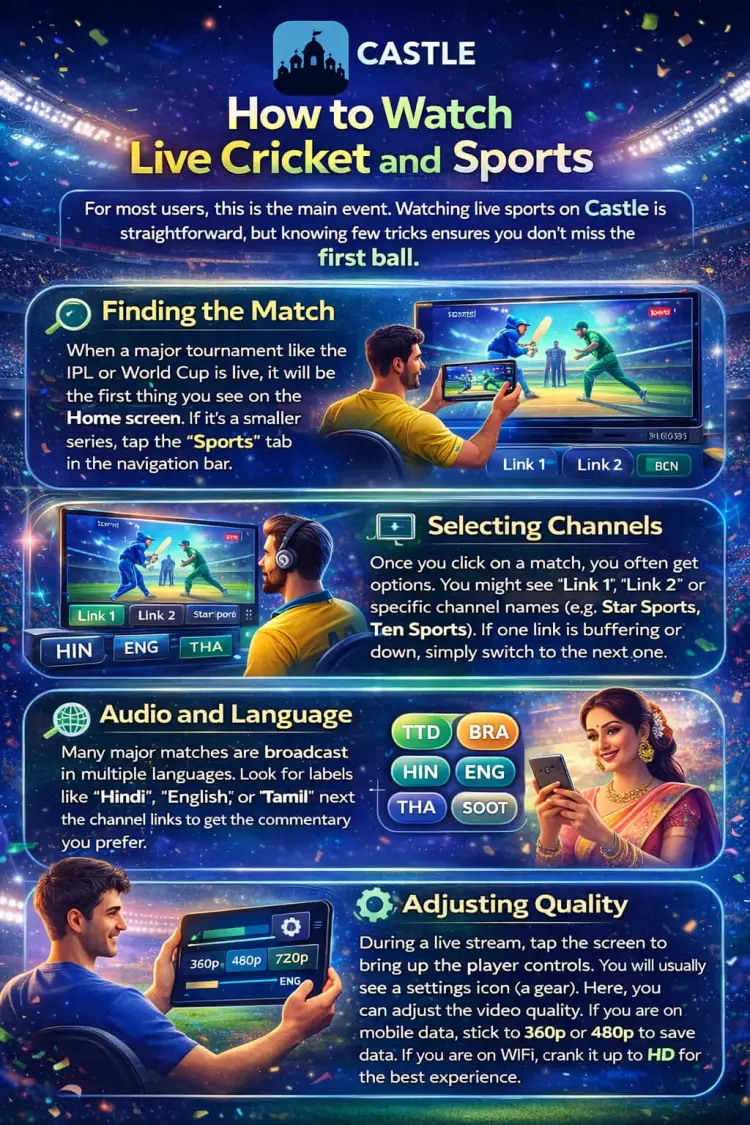
For most users, this is the main event. Watching live sports on Castle is straightforward, but knowing a few tricks ensures you don't miss the first ball.
Finding the Match: When a major tournament like the IPL or World Cup is live, it will be the first thing you see on the Home screen. If it's a smaller series, tap the "Sports" tab in the navigation bar.
Selecting Channels: Once you click on a match, you often get options. You might see "Link 1," "Link 2," or specific channel names (e.g., Star Sports, Ten Sports). If one link is buffering or down, simply switch to the next one.
Audio and Language: Many major matches are broadcast in multiple languages. Look for labels like "Hindi," "English," or "Tamil" next to the channel links to get the commentary you prefer.
Adjusting Quality: During a live stream, tap the screen to bring up the player controls. You will usually see a settings icon (a gear). Here, you can adjust the video quality. If you are on mobile data, stick to 360p or 480p to save data. If you are on WiFi, crank it up to HD for the best experience.
Watching TV Channels, Movies, and Shows
Castle isn't just for sports; it’s a full entertainment hub. If you want to watch daily news or catch up on a seriel, navigate to the "Live TV" section.
Here, channels are usually organised by genre or language. You can scroll through categories like "News," "Entertainment," "Movies," and "Kids." This makes it easy to find
Aaj Tak
for news or
Cartoon Network
for the children.
For movies, there is a dedicated "Movies" tab. Unlike live TV, these are often "Video on Demand," meaning you can play, pause, and rewind them whenever you want.
Pro Tip: If you are watching a TV series or movie, make sure you have a stable connection. Unlike live sports, where a little buffer is annoying, a movie stopping every minute ruins the mood. Use the search bar at the top of the app to quickly find specific channels without scrolling through the massive list.
Using Castle on Smart TV and Big Screens
Watching on a phone is convenient, but watching cricket on a 50-inch screen is an experience. Here is how to get Castle on your TV.
Android TV (The USB Method)
: Since you can't download Castle from the TV's Play Store, download the APK on your computer. Save it to a USB drive. Plug the USB into your TV. Open your TV’s "File Manager" (you might need to download one from the TV store), find the APK on the USB drive, and click install.
Using Chromecast: This is often easier. Open Castle on your Android phone. Play the channel you want. Tap the video player, and look for the square "Cast" icon (usually top right). Select your TV from the list. The video will stop playing on your phone and beam directly to your TV.
Common TV Issues: If the app looks stretched or sideways on your TV, check if you have "Screen Rotation" locked on your device, or ensure you have downloaded a version of the app optimised for TV (if available), though the standard mobile version usually scales well.
Internet, Streaming Quality, and Performance Tips
Your experience with Castle is 100% dependent on your internet speed. Here is the reality of what you need:
Minimum Requirement
You need at least 2-3 Mbps speed for standard quality (SD) streaming.
Recommended for HD
For clear 720p or 1080p HD streaming, you need a stable speed of 5-10 Mbps.
Reducing Buffering: If the video keeps stopping, try these steps:
Lower the Quality
Drop from HD to 480p. It looks fine on a phone screen and uses much less data.
Close Background Apps
If your phone is downloading updates or running heavy apps in the background, it kills your streaming speed.
WiFi vs. Data
WiFi is generally more stable. Mobile data can fluctuate, causing the stream to freeze. If you must use mobile data, ensure you are in a spot with strong 4G or 5G signal.
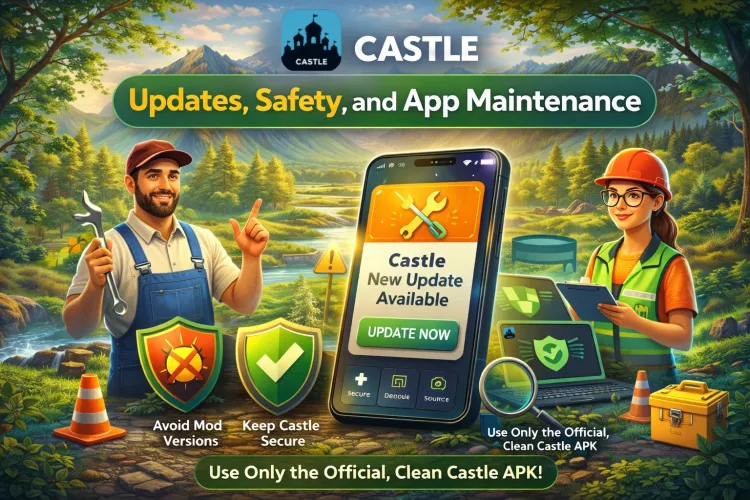
Updates, Safety, and App Maintenance
Because Castle is a third-party app, it doesn't auto-update in the background like WhatsApp. You have to manage it yourself, but it’s easy.
When to Update: When you open the app, you might get a pop-up saying "New Version Available." Always accept this. Developers release updates to fix broken channels (links often change) and improve security. Using an old version is the main reason streams stop working.
Safety Tips: Is Castle safe? Yes, provided you download it from a legitimate source. Never download "Ad-Free Mod" versions from sketchy websites, as these can contain malware. Stick to the clean, original APK. Also, you generally don't need to create an account or provide personal details to use Castle, which protects your privacy.
Download Castle APK
Common Problems and Solutions
Here is a quick cheat sheet for when things go wrong:
"App Not Installed" Error: You likely have low storage space or didn't enable "Unknown Sources." Clear some space and check your security settings.
Black Screen / Audio Only: This is usually a decoder issue. Close the app completely (swipe it away from recent apps) and restart it.
Channel Not Loading: The specific link might be down. Go back and try "Link 2" or a different server for the same channel.
App Crashing: Your cache might be full. Go to your Phone Settings > Apps > Castle > Storage > Clear Cache. This fixes 90% of crashing issues.
Video Lagging: Your internet is likely too slow for the current quality setting. Lower the resolution.
Final Guide Summary and User Tips
You are now equipped with everything you need to master Castle. We’ve covered how to get it installed safely, how to navigate the sports and TV sections, and how to put the picture on your big screen.
The best way to get comfortable is to explore. Don't just stick to the homepage; dig into the categories and discover new channels. Remember, the most important rule is to keep the app updated. If a channel stops working, an update is usually just around the corner to fix it.
Castle is a powerful tool that puts the world of entertainment in your pocket for free. Use this guide whenever you get stuck, and enjoy the show!